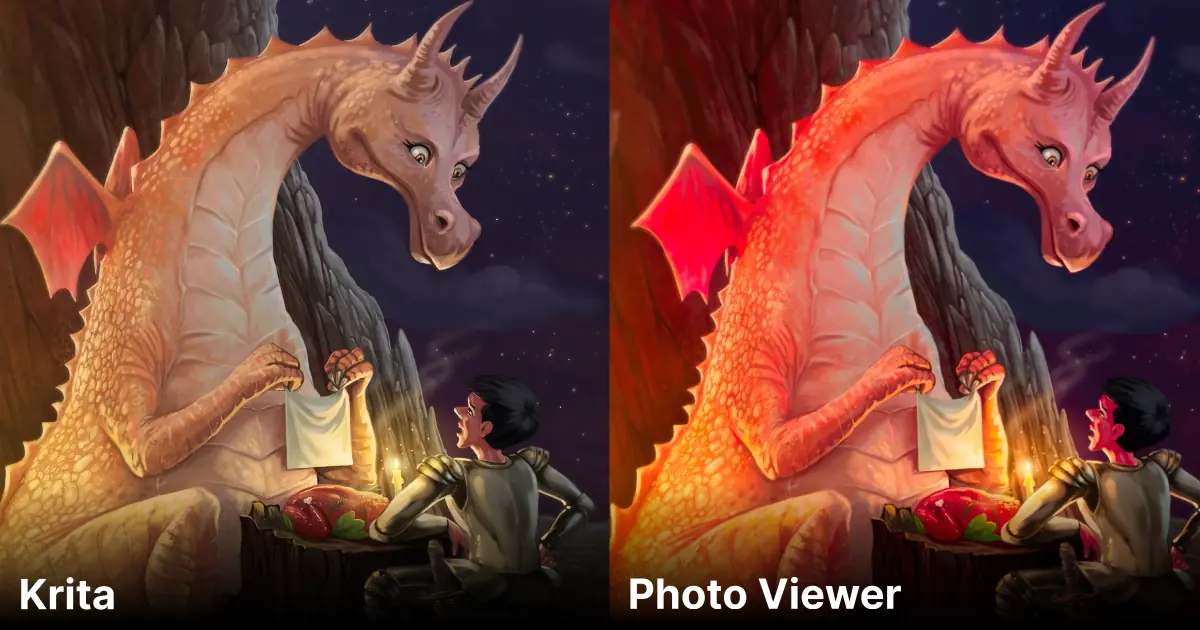
Over the years, while answering many questions about Krita on Reddit, Krita-Artists, and other Krita forums, I have observed that this question often comes up. Krita provides a variety of color profiles, and while experimenting or due to a lack of knowledge, new users stumble upon this issue regularly. When you export a Krita image and share it online on forums, Discord, or internet portfolio websites, or open it in a photo viewer, your artwork looks drastically different than what it looks like in Krita. This really puzzles many new users. The fix to this is really simple; this might happen to you due to the reasons mentioned below. Let us go through the problems and solutions one by one and troubleshoot this issue.
Why does my exported artwork look different when opened outside Krita?
The simple answer to this question is the type of color profile used for the document when creating the artwork. While Krita is a color-managed application, not all applications support every type of color profile or bit depth that you can use in Krita. Some restrict to 8-bit or some restrict to only sRGB and do not support CMYK, LAB, or other color profiles available in Krita. When you save a PNG or JPG with a color profile that an application does not support, it will make the artwork look different than what it looks like inside Krita.
Solution - color profile check
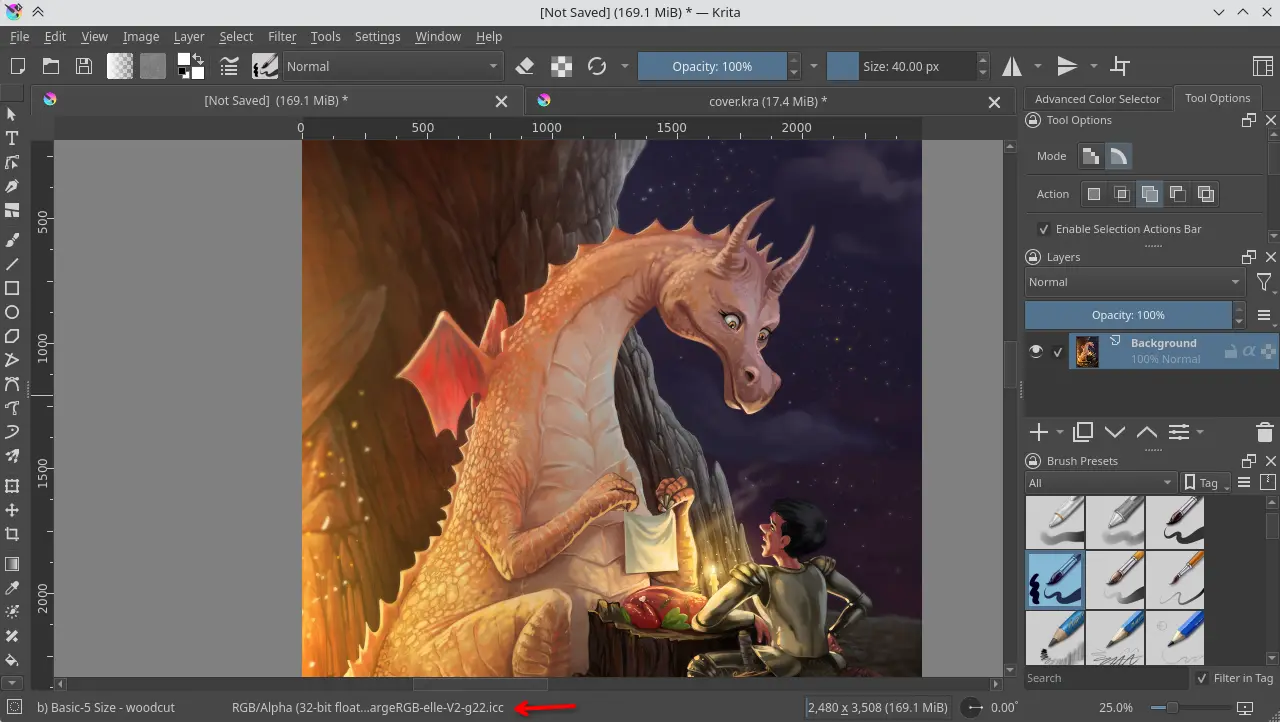
Almost all photo viewers, browsers, and internet forums support the sRGB 8-bit color profile. Check whether you are using something else. When you open your file in Krita, see the bottom part of the application, there will be a status bar, and it will tell you the name of the color profile used for the current document. The safe option, which will make the artwork look similar everywhere, is Model - RGB/Alpha, Depth - 8-bit integer/channel, Profile - sRGB-elle-V2-srgbtrc.icc (Default).
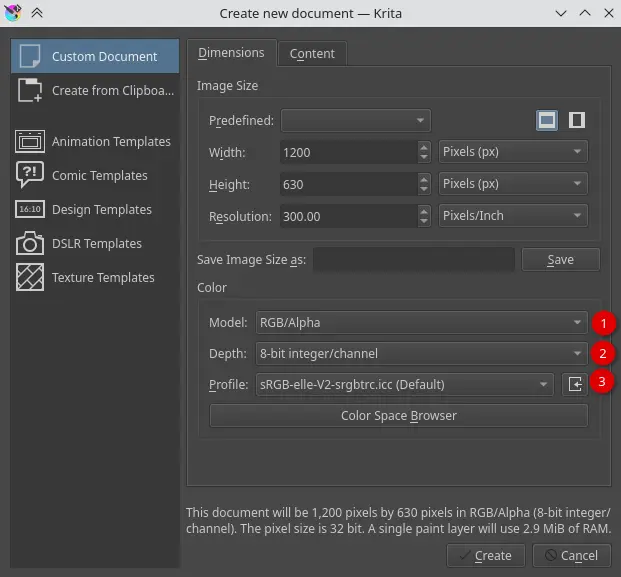
Also keep in mind that Krita remembers your choice when you create a new document next time. So if you have selected some non-default color profile for experimenting sometime earlier, then you might end up with the same profile when you create a new document. It is entirely possible that you miss this detail and create an awesome artwork in this non-default color profile, only to get surprised at the end when you export and open your artwork outside Krita. So double-check the color profile when creating new documents
Non calibrated display
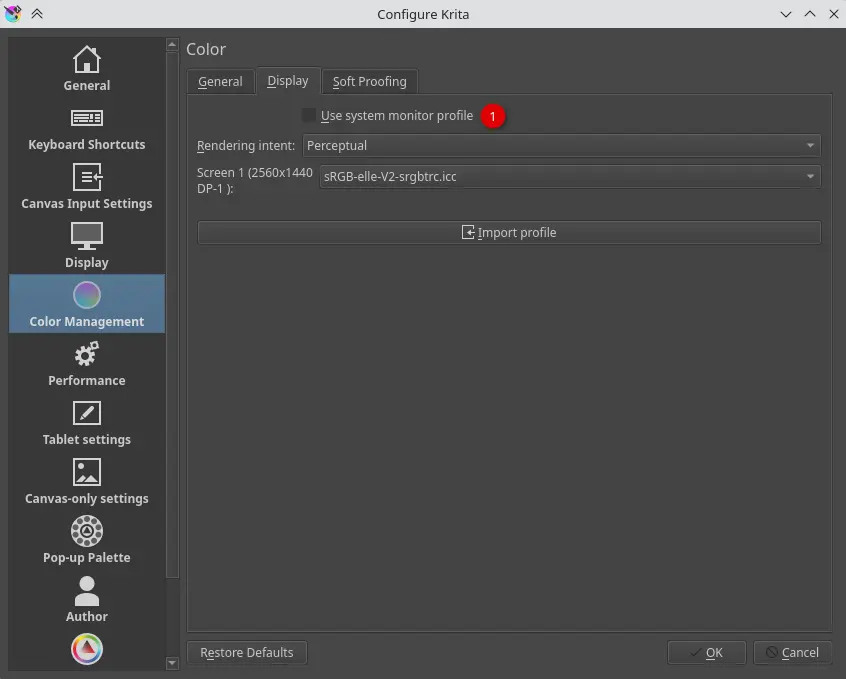
One other reason your artwork might look different is not having a color-managed display. But this matters when you send your artwork to others or view it on another screen. The solution is simple calibrate your monitor and use the color profile in the display settings of your OS. Krita can use the display profile from your OS, or you can manually set it in the color management section of the settings.
What to do when I need to create artwork in non default color profile?
Method 1
If you know what you are doing and want to use a different color profile for some reason, then you need to take care while saving and exporting the artwork. The best way is to convert the artwork to standard 8 bit sRGB profile and then save as PNG or JPG. Converting the layered artwork into a different color space might lead to unwanted color changes or issues so you should create a copy of the file, then flatten it and finally then convert the color profile.
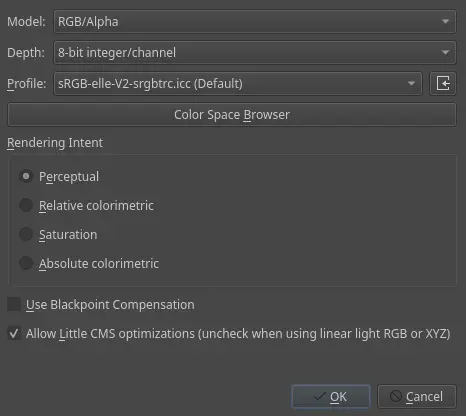
- Once you have saved a copy of the artwork, go to Layer menu -> Flatten Image or use the keyboard shortcut Ctrl + Shift + E
- After flattening the file, go to Image menu -> Convert Image Color Space. Choose Model - RGB/Alpha , Depth - 8-bit integer/channel, Profile - sRGB-elle-V2-srgbtrc.icc (Default).
- Now you can save the artwork as PNG or JPG.
Method 2 - quick PNG export
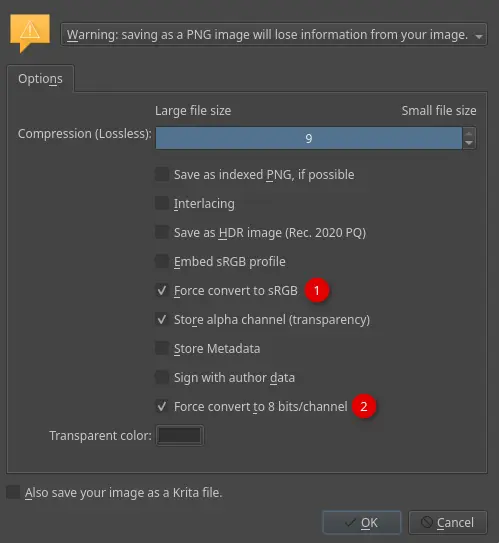
There is also a quick way to skip the steps above and save the file in the default 8 bit sRGB profile. When you try to save the PNG file, you will get a export dialog, simply tick the two options -
- Force convert to sRGB
- Force convert to 8 bits/channel
Krita will remember this setting so next time you export the png it will have these options already selected unless you change it.
With these steps, your image should look the same as it looks inside Krita.
Comments
Do you have any feedback or comment on this post?Send a toot to me on fediverse or email me your feedback.